

Honeywell’s TH8000 series, including TH8100, TH8320U models, offers touchscreen programmability for diverse HVAC systems—gas, oil, electric heat, and heat pumps—requiring careful installation.
The Honeywell 8000 Series, encompassing models like the TH8000, TH8100, and TH8320U, represents a significant advancement in home comfort and energy management. These touchscreen programmable thermostats are designed for compatibility with a wide range of heating and cooling systems, including conventional gas, oil, or electric heat, as well as heat pump configurations.
This series offers enhanced features such as remote access via Wi-Fi, customizable scheduling, and detailed energy usage reporting. The TH8320U model specifically supports systems with up to three heating and two cooling stages, alongside optional dehumidification capabilities. Proper installation is crucial to unlock the full potential of these thermostats, ensuring accurate temperature control, optimized energy efficiency, and a comfortable living environment. This guide will provide a comprehensive walkthrough of the installation process, from preparation to configuration.
Understanding the TH8000, TH8100, TH8320U Models
The Honeywell 8000 series offers tiered functionality across its models. The TH8000 is a foundational touchscreen programmable thermostat suitable for basic 1-heat/1-cool systems. Stepping up, the TH8100 provides similar programmability with an enhanced user interface and potentially additional smart home integrations.
The TH8320U is the most versatile, designed for systems requiring up to three heating and two cooling stages. Crucially, it also supports dehumidification, making it ideal for homes needing humidity control. Identifying your specific model is vital; locate the model number on the back of the thermostat after removing it from the wallplate. Understanding these distinctions ensures you select the correct wiring configuration and setup options during installation, maximizing performance and compatibility with your existing HVAC system.
Tools and Materials Required for Installation
Before commencing the Honeywell 8000 thermostat installation, gather essential tools for a smooth process. A Phillips head screwdriver is crucial for wallplate and thermostat mounting. Wire strippers are needed for preparing existing HVAC wiring, ensuring clean connections. A small level guarantees the wallplate is mounted straight, improving aesthetics and functionality.
Additionally, a voltage tester is paramount for safety, verifying power is completely off before handling wires. Pencils for marking wire locations and a digital camera for documenting existing wiring configurations are highly recommended. Depending on your setup, you might require wire connectors (wire nuts) if existing connections are damaged or inadequate. Finally, have the Honeywell 8000 thermostat kit itself, including the wallplate, thermostat body, and included mounting hardware readily available.

Preparing for Installation
Prior to installation, prioritize safety by disconnecting power to your HVAC system and carefully removing your existing thermostat, documenting the wiring setup.
Safety Precautions Before Starting
Prioritizing safety is paramount during Honeywell 8000 thermostat installation. Always disconnect power to your HVAC system at the breaker box before commencing any work to avoid electrical shock. Confirm the power is off using a non-contact voltage tester.
Exercise caution when handling wiring; even with the power off, residual voltage may be present; If you are uncomfortable working with electrical wiring, consult a qualified HVAC technician.
Wear appropriate safety glasses to protect your eyes from dust and debris. Keep children and pets away from the work area. Ensure adequate lighting for clear visibility.
Document the existing wiring configuration before disconnecting anything – take clear photos or create a detailed diagram. This will be invaluable during the new thermostat’s wiring process. Failure to do so can lead to incorrect wiring and potential damage to your HVAC system.
Turning Off Power to Your HVAC System
Before initiating any Honeywell 8000 thermostat installation steps, completely de-energize your heating, ventilation, and air conditioning (HVAC) system. Locate the circuit breaker panel, typically found in a basement, garage, or utility room. Identify the breaker controlling your HVAC system – it’s often labeled “Furnace” or “HVAC,” but may require some investigation.
Firmly switch the identified breaker to the “OFF” position. Crucially, do not rely solely on the thermostat’s power switch; this does not fully disconnect power.
To verify power is indeed off, use a non-contact voltage tester on the wires at your existing thermostat location. If the tester indicates voltage, double-check the breaker and repeat the process.
Confirm no lights illuminate on the furnace or air handler when the thermostat calls for heat or cool. This final check ensures a safe working environment.
Removing Your Old Thermostat
After verifying the power is off, carefully remove your existing thermostat. Most thermostats are attached with screws; locate and loosen these to detach the thermostat cover from the wallplate. Gently pull the cover forward to reveal the wiring connections.
Before disconnecting any wires, it’s vital to label each wire clearly. Use the provided wire labels (often included with the Honeywell 8000) or create your own, noting the terminal letter each wire is connected to (e.g., R, W, G, Y). A photograph of the existing wiring is also highly recommended as a backup.
Once labeled, carefully disconnect each wire from its terminal. Use a small screwdriver if necessary. Avoid letting the wires fall back into the wall. Finally, remove the old wallplate from the wall.
Identifying Existing Wiring
Accurate wire identification is crucial for a successful Honeywell 8000 installation. Common wire designations include R (power), W (heat), G (fan), Y (cooling), C (common – often blue, and essential for Wi-Fi connectivity), and sometimes others for auxiliary heat or specific system features.
Compare your existing wiring to the Honeywell wiring diagrams. Note that wire colors aren’t always standardized; always rely on the terminal letter. If you have a wire connected to a terminal not listed in the Honeywell documentation, consult a qualified HVAC technician.
Pay close attention to the presence of a ‘C’ wire. Many smart thermostats, including the 8000 series, require a ‘C’ wire for consistent power. If you don’t have one, you may need to install one or use a ‘C’ wire adapter (sold separately).

Wallplate Installation
Securely mount the wallplate using provided screws, ensuring it’s level for proper thermostat alignment; then, carefully connect the identified wires to the designated terminal blocks.
Mounting the Wallplate to the Wall
Before mounting, verify the wall is suitable and level. Use the included mounting screws – avoid over-tightening, which could damage the wall or the wallplate itself. The wallplate should sit flush against the wall for a secure and aesthetically pleasing installation.
If existing screw holes don’t align, use appropriate wall anchors for a firm hold. Ensure the wallplate is positioned to allow easy wire access and connection to the terminal blocks. Double-check that the wallplate is oriented correctly, as improper orientation can lead to wiring difficulties later.
Once the wallplate is securely mounted, gently tug on it to confirm its stability. A wobbly wallplate indicates insufficient anchoring and requires immediate attention. Proper mounting is crucial for the overall stability and functionality of the Honeywell 8000 thermostat system.
Connecting Wires to the Terminal Blocks
Carefully strip approximately ¼ inch of insulation from the end of each wire, avoiding any damage to the wire strands; Refer to your existing thermostat’s wiring and the Honeywell wiring diagrams to correctly identify each wire’s function. Gently insert each wire into the corresponding terminal block on the wallplate, ensuring a secure connection.
Use a small screwdriver to tighten the terminal block screws, securing the wires in place. Avoid over-tightening, which could damage the wires or the terminal blocks. Double-check that each wire is firmly seated and doesn’t pull out easily.
A loose connection can cause intermittent heating or cooling issues. Take a photograph of the wiring before proceeding, as a reference point if needed. Proper wiring is essential for the safe and efficient operation of your Honeywell 8000 thermostat.
Wiring Configurations
Honeywell 8000 series supports various systems: conventional heating/cooling, heat pumps, humidification, dehumidification, and ventilation—each requiring specific terminal connections for optimal functionality.
Terminal Designations Explained
Understanding the terminal designations is crucial for correct wiring. R typically signifies 24VAC power, while C is the common wire, essential for consistent power to the thermostat. W controls heating, activating the heating system when a call for heat exists. Y activates cooling, engaging the air conditioner or cooling system. G controls the fan, operating independently or alongside heating/cooling.
For heat pump systems, O/B reverses the valve for heating or cooling – configuration depends on the system type. Aux or E provides auxiliary or emergency heat. L energizes the humidifier, and D controls dehumidification. Terminals may vary slightly based on the specific Honeywell model (TH8000, TH8100, TH8320U) and system configuration. Always consult the detailed wiring diagram included with your thermostat and HVAC system for accurate identification and connection of each wire.
Wiring Guide: Conventional Heating and Cooling Systems
For standard gas, oil, or electric heating and cooling setups, connect the R wire to the 24VAC power terminal. The C wire, the common wire, is vital for consistent power and should be connected to its designated terminal. Connect the W wire to the heating terminal, activating the heating system. The Y wire controls cooling, connecting to the cooling terminal. The G wire operates the fan; connect it to the fan terminal.
Ensure wires are securely fastened to the terminal blocks. If your system lacks a C wire, a C-wire adapter might be necessary. Double-check all connections against your HVAC system’s wiring diagram and the Honeywell thermostat’s specific instructions (TH8000, TH8100, TH8320U). Incorrect wiring can damage your system, so proceed cautiously and verify each connection before restoring power.
Wiring Guide: Heat Pump Systems
Heat pump wiring differs from conventional systems. Connect the R wire to 24VAC power, and the C wire to the common terminal for consistent power. The Y wire now energizes both the compressor and the outdoor fan. The W wire activates auxiliary/emergency heat. A reversing valve wire, typically labeled O or B, controls heating/cooling mode – connect it to the appropriate terminal.
For systems with a separate fan control, connect the G wire to the fan terminal. Verify your heat pump’s wiring diagram carefully, as configurations vary. Some systems may require specific settings within the thermostat’s configuration menu (TH8000, TH8100, TH8320U) to function correctly. Secure all connections and double-check before restoring power to avoid damage.
Wiring Guide: Systems with Humidification
When integrating a humidifier with your Honeywell TH8000 series thermostat, a dedicated wire is typically required. This wire, often labeled HUM or H, connects to the humidifier’s solenoid valve. The thermostat energizes this wire to activate the humidifier when humidity levels fall below the setpoint. Ensure the humidifier is compatible with a 24VAC signal.
Connect the HUM wire to the designated humidifier terminal on the thermostat’s wallplate. Within the thermostat’s setup menu, you’ll need to configure the system type to include humidification. Adjust settings like humidity level and activation duration to optimize performance. Proper wiring and configuration ensure the humidifier operates efficiently alongside your heating system, maintaining comfortable indoor humidity levels.
Wiring Guide: Systems with Dehumidification
For systems incorporating dehumidification, the Honeywell TH8000 requires a dedicated wire, commonly labeled DHUM or D, to control the dehumidifier. This wire energizes the dehumidifier when humidity exceeds the programmed setpoint. Verify your dehumidifier operates on a standard 24VAC signal for compatibility.
Connect the DHUM wire to the designated dehumidification terminal on the thermostat’s wallplate. Within the thermostat’s setup, select the system type to include dehumidification functionality. Configure settings such as desired humidity levels and the dehumidifier’s operating duration. Correct wiring and setup ensure the dehumidifier works in tandem with your cooling system, effectively managing indoor humidity and enhancing comfort.
Wiring Guide: Ventilation Systems
When integrating a whole-house ventilation system with your Honeywell TH8000 thermostat, a dedicated wire is typically used for control, often labeled VENT or V. This wire activates the ventilation fan based on programmed schedules or humidity levels, improving indoor air quality. Ensure the ventilation system is compatible with a 24VAC control signal.
Connect the VENT wire to the appropriate terminal on the wallplate. Within the thermostat’s configuration menu, enable the ventilation system and customize its operation. You can set schedules for continuous ventilation, intermittent operation, or trigger ventilation based on humidity or occupancy. Proper setup ensures optimal air exchange, reducing pollutants and maintaining a healthy indoor environment alongside your heating and cooling systems.
Thermostat Setup and Configuration
After wiring, securely attach the thermostat to the wallplate and proceed with initial configuration, including setting the date, time, and system type preferences.
Attaching the Thermostat to the Wallplate
Once the wiring is meticulously connected to the terminal blocks on the wallplate, carefully align the Honeywell 8000 thermostat with the mounted wallplate. Gently push the thermostat onto the wallplate until it clicks securely into place; ensure a flush and stable fit.
Before fully seating the thermostat, double-check that all wires remain firmly connected to their respective terminals – a loose connection can cause operational issues. The thermostat’s touchscreen should face outwards for easy access and visibility.
If the thermostat doesn’t easily attach, do not force it. Re-examine the wiring and wallplate alignment to identify any potential obstructions or misalignments. A proper connection is crucial for reliable performance and prevents potential damage to the thermostat or your HVAC system. Remove the thermostat and re-seat it carefully.
Setting the Date and Time
After attaching the thermostat to the wallplate and powering on the HVAC system, the initial setup process begins. The Honeywell 8000’s touchscreen will guide you through configuring essential settings, starting with the date and time. Access the settings menu via the touchscreen interface – typically represented by a gear or settings icon.
Navigate to the “Date” and “Time” options. Use the touchscreen’s up and down arrows, or directly input the values, to accurately set the current date (month, day, and year) and time (hour and minute). Ensure you select the correct AM or PM designation.
Accurate date and time settings are vital for proper scheduling and operation of the thermostat’s programmable features. Confirm your selections before saving, as incorrect settings will affect the programmed schedules and potentially the thermostat’s overall functionality.
Configuring System Type (Heat/Cool/Auto)
Following date and time setup, the Honeywell 8000 thermostat requires configuration of the system type to ensure correct operation with your specific HVAC setup. Access the settings menu on the touchscreen and locate the “System Type” or “System Configuration” option. You’ll typically be presented with choices: Heat, Cool, or Auto.
Select “Heat” if your system provides heating only. Choose “Cool” for cooling-only systems. “Auto” is ideal for conventional systems that offer both heating and cooling, allowing the thermostat to automatically switch between modes based on temperature. For Auto Changeover, ensure settings are at least 2 degrees apart, or 5 degrees if function 0380 is enabled.
Proper system type selection is crucial for accurate temperature control and efficient energy usage. Incorrect configuration can lead to the system operating improperly or consuming unnecessary energy.
Setting Temperature Scale (Fahrenheit/Celsius)
After configuring the system type, personalize your Honeywell 8000 thermostat by selecting your preferred temperature scale: Fahrenheit or Celsius. Navigate to the settings menu on the touchscreen interface. Look for an option labeled “Temperature Scale,” “Units,” or similar. This setting allows you to display temperatures in either degrees Fahrenheit (°F) or degrees Celsius (°C).
The choice between Fahrenheit and Celsius is largely a matter of personal preference. Select the scale you are most comfortable with for monitoring and adjusting your home’s temperature. The thermostat will display all temperature readings, including setpoints and current room temperature, in the chosen scale.
Confirm your selection and exit the settings menu. The thermostat display will immediately update to reflect the new temperature scale, ensuring a user-friendly experience.

Connecting to Wi-Fi and Registration
To unlock smart features, connect your Honeywell 8000 thermostat to your home Wi-Fi network and register it online through the Honeywell Home app or website.
Connecting the Thermostat to Your Home Wi-Fi Network
Establishing a Wi-Fi connection is crucial for remote control and advanced features. Begin by ensuring your home Wi-Fi network is active and you have the password readily available. On the thermostat’s touchscreen, navigate to the settings menu and select the “Connect to Wi-Fi” option.
The thermostat will scan for available networks; choose yours from the list. You’ll be prompted to enter your Wi-Fi password using the on-screen keyboard. Double-check the password for accuracy, as incorrect entries will prevent connection.
Once the password is submitted, the thermostat will attempt to connect. A successful connection is typically indicated by a Wi-Fi symbol appearing on the display. If the connection fails, verify the password and ensure the thermostat is within range of your router. Some routers may require you to enable WPS for easier pairing. After successful connection, the thermostat will automatically synchronize with the Honeywell Home servers.
Registering Your Thermostat Online
Registering your Honeywell Home 8000 thermostat online unlocks full access to its smart features and remote control capabilities. After connecting to Wi-Fi, you’ll receive a prompt on the thermostat’s screen to begin the registration process, or you can initiate it through the Honeywell Home mobile app or website.
You’ll need to create a Honeywell Home account, providing a valid email address and creating a secure password. During registration, the thermostat’s unique identification number will be automatically detected. You’ll also be asked to name your thermostat, which is helpful if you have multiple units in a zoned HVAC system.
Completing registration links your thermostat to your account, enabling remote access, software updates, and access to customer support. Ensure you verify your email address to activate your account fully. Registration is essential for maximizing the benefits of your smart thermostat.
Programming and Operation
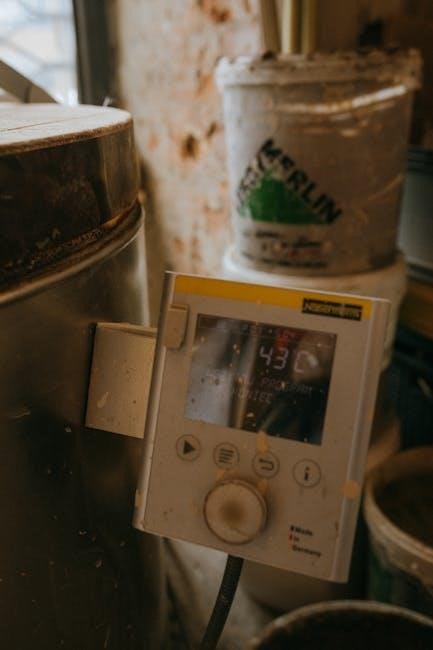
The Honeywell 8000 features preset energy-saving schedules, adjustable program settings, and displays equipment status; occupancy mode is available for commercial use.
Understanding Preset Energy-Saving Schedules
The Honeywell 8000 thermostat comes equipped with pre-programmed energy-saving schedules designed to optimize comfort while minimizing energy consumption. These schedules typically categorize days into distinct periods – Wake, Leave, Return, and Sleep – each with a corresponding setpoint temperature. The thermostat intelligently adjusts the temperature based on these pre-defined periods, reducing heating or cooling when the space is unoccupied or during sleep hours.
Users can readily access and review these preset schedules through the thermostat’s touchscreen interface. Understanding these default settings is crucial before customizing them to align with individual lifestyles and preferences. The system aims to provide a balance between comfort and efficiency, automatically adapting to typical daily routines. These schedules serve as a convenient starting point, offering immediate energy savings without requiring extensive manual programming.
Adjusting Program Schedules
To personalize your comfort and maximize energy savings, the Honeywell 8000 allows for easy adjustment of the preset program schedules. Access the programming menu via the thermostat’s touchscreen, navigating to the schedule settings. You can modify the temperature setpoints for each period – Wake, Leave, Return, and Sleep – tailoring them to your specific needs.
Furthermore, the system allows for different schedules to be created for weekdays and weekends, accommodating varying routines. Adjusting the transition times between periods is also possible, ensuring the thermostat aligns with your daily activities. Remember to save any changes made to the schedule to ensure they are implemented. Experimenting with different settings can help you find the optimal balance between comfort and energy efficiency, perfectly suited to your lifestyle.
Viewing Equipment Status and Diagnostics
The Honeywell 8000 thermostat provides valuable insights into your HVAC system’s operation through its equipment status and diagnostics features. Accessing this information via the touchscreen interface allows you to monitor the current state of your heating and cooling equipment, confirming whether it’s actively running or idle.
Beyond basic status, the thermostat can display diagnostic codes, offering clues to potential issues within the system. These codes can be incredibly helpful for troubleshooting minor problems or providing essential information to a qualified HVAC technician. Regularly checking the equipment status can help identify anomalies early, potentially preventing costly repairs down the line. The system also allows viewing of outside temperature if an optional sensor is installed.
Using Occupancy Mode (Commercial Applications)
For commercial settings, the Honeywell 8000 thermostat’s Occupancy Mode offers significant energy savings and enhanced control. This feature allows for automated adjustments to temperature settings based on building occupancy patterns, ensuring comfort when spaces are in use and minimizing energy consumption during unoccupied periods.
Initiating Occupancy Mode through the thermostat’s interface enables pre-defined schedules tailored to typical business hours or specific event schedules. The system can automatically switch between occupied and unoccupied settings, optimizing temperature for comfort and efficiency. This is particularly useful in offices, retail spaces, and other commercial environments where occupancy fluctuates throughout the day. Proper configuration of occupancy schedules is key to maximizing energy savings and maintaining a comfortable environment.